

How to Install Salesgroup AI on Shift4Shop
In this guide, we’ll show you how to integrate the SalesGroup.ai AI-powered chatbot into your Shift4Shop website. By following these steps, you’ll have a fully functional AI assistant ready to improve customer interactions and streamline communication on your online store.
Step 1: Log in to Your SalesGroup AI Account
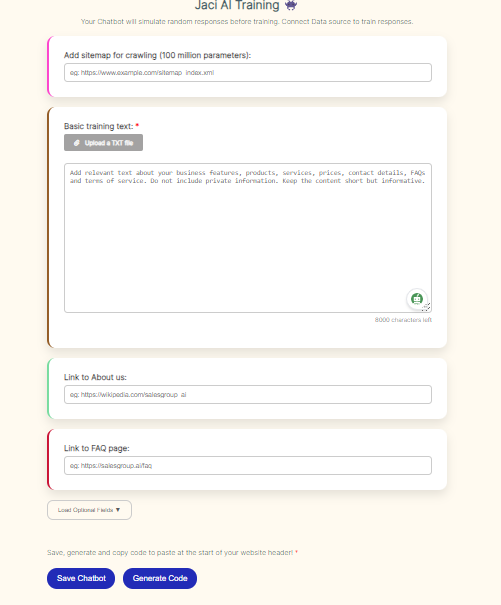
Start by navigating to the SalesGroup AI website and logging into your account. Once logged in, you’ll be directed to the AI Playground, where you can set up and customize your AI-powered chatbot.

Step 2: Configure the AI Playground
Within the AI Playground, you’ll be able to customize the chatbot’s behavior and appearance to fit your store’s needs. Fill in the necessary details, such as:
- Training Data: Upload or input the training data that the AI will use to interact with your customers. This ensures that it delivers personalized and accurate responses.
- Customization: Adjust the look and feel of your chatbot to match your brand’s style. This includes customizing colors, buttons, fonts, and other visual elements.
Make sure to tweak the chatbot’s settings to enhance its functionality and ensure it aligns with your store’s branding.
Step 3: Save and Generate the Integration Code
After configuring your chatbot, click Save. SalesGroup AI will generate a code snippet for you to use.
- Copy the code snippet, as you will need it for the next step.
Step 4: Log in to Your Shift4Shop Admin Panel
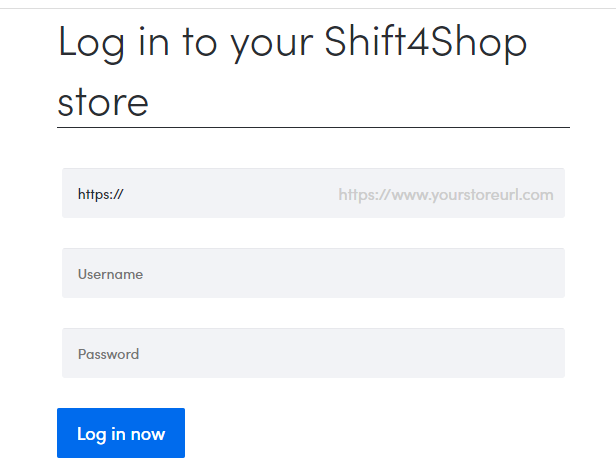
Now, head over to your Shift4Shop Admin Panel by navigating to yourdomain.com/admin and logging in with your credentials.
Step 5: Insert the Code Snippet into Shift4Shop
To embed the chatbot into your Shift4Shop store, follow these steps:
Option 1: Adding the Code Site-Wide (Global Integration)
- In the Shift4Shop Admin Panel, go to Settings > Design > Themes & Styles.
- Scroll down to HTML Insertions.
- Locate the Global Header or Footer section where you can add custom code.
- Paste the SalesGroup AI code snippet in the Global Footer section to display the chatbot across all pages of your store.
- Click Save to apply the changes.
Option 2: Adding the Code to Specific Pages
If you prefer to display the AI chatbot on specific pages (e.g., the checkout or product pages), follow these steps:
- In the Admin Panel, navigate to Content > Pages.
- Select the specific page you want the chatbot to appear on.
- Paste the SalesGroup AI code snippet into the HTML content section of that page.
- Click Save.
Related: How to install SalesGroup Ai in Magento
Step 6: Preview and Test the Chatbot
After saving your changes, go to the front end of your Shift4Shop store to ensure the chatbot is visible and functioning properly.
- Test the chatbot by interacting with it to confirm it responds correctly to customer inquiries.
Conclusion
By following these steps, you’ll successfully integrate SalesGroup AI into your Shift4Shop store. The chatbot will now provide your customers with real-time assistance, improving their shopping experience and boosting your store’s overall engagement. If you encounter any issues, revisit the steps and double-check the code placement.
