

How to Install SalesGroup.ai on Wix
Welcome to SalesGroup.ai! In this guide, we’ll show you how to install the AI-powered SalesGroup.ai chatbot on your Wix website. With just a few steps, you’ll be able to enhance your site’s customer service experience by adding a fully functional AI assistant. Let’s get started!
Table of Contents
Step 1: Sign Up or Log In to SalesGroup.ai
Before you begin the installation, make sure you have an active SalesGroup.ai account.
- New User: If you’re new to SalesGroup.ai, sign up for a free trial by visiting SalesGroup.ai or read this guide
- Existing User: Log in using your email and password to access your account.

Step 2: Access Your Dashboard
Once logged in, you’ll be directed to your SalesGroup.ai dashboard. This is your central hub for setting up, training, and managing your AI chatbot.
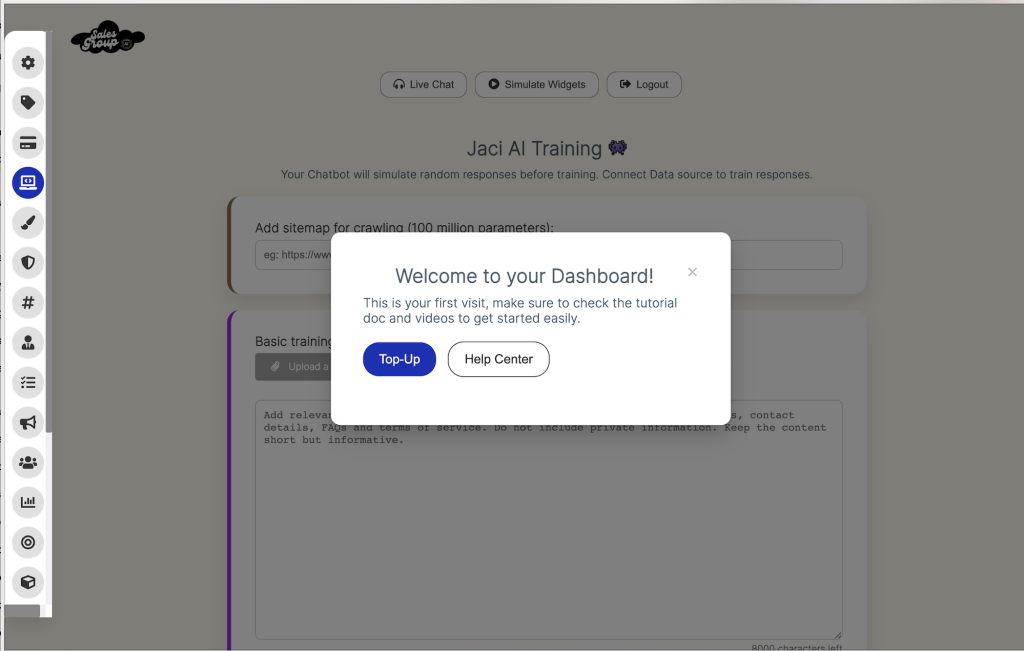
Step 3: Train Your AI Chatbot
To ensure your chatbot understands your business, train it with the relevant information:
- Navigate to “AI Chatbot Training”: From the menu on the left, click on the AI Chatbot Training option.
- Add Basic Information: In the training section, provide essential details about your business such as:
- Services and products
- FAQs
- Contact information
- Optional: You can add your sitemap URL (e.g., https://www.example.com/sitemap.xml) to allow the AI to crawl and understand your site’s structure better.

Step 4: Customize the Chatbot
Customize the chatbot by adding specific details that reflect your brand:
- Chatbot Name: Give your chatbot a unique name.
- FAQs: Add frequently asked questions to help the AI respond quickly and accurately.
- Contact Information: Provide your business’s phone number, social media profiles, and meeting scheduler links.
Related: How to Install SalesGroup.ai on Your Website
Step 5: Generate Your Chatbot Code
Now that your chatbot is trained and customized, you’ll need to generate the installation script:
- Click on “Generate Code”: This will create a JavaScript code snippet specifically for your chatbot.
- Copy the Code: Once the code is generated, copy it for the next step.
Step 6: Install the Chatbot on Your Wix Website
Important: You Need a Paid Wix Plan
Before you can install the chatbot, ensure that your Wix account is on a paid plan. Wix’s free plans do not allow the addition of custom code, which is required to integrate SalesGroup.ai.
Step 6.1: Open Wix Editor
- Log in to your Wix account and open the site editor for the website where you want to install SalesGroup.ai.
- In the editor, navigate to the Settings option located in the top toolbar.
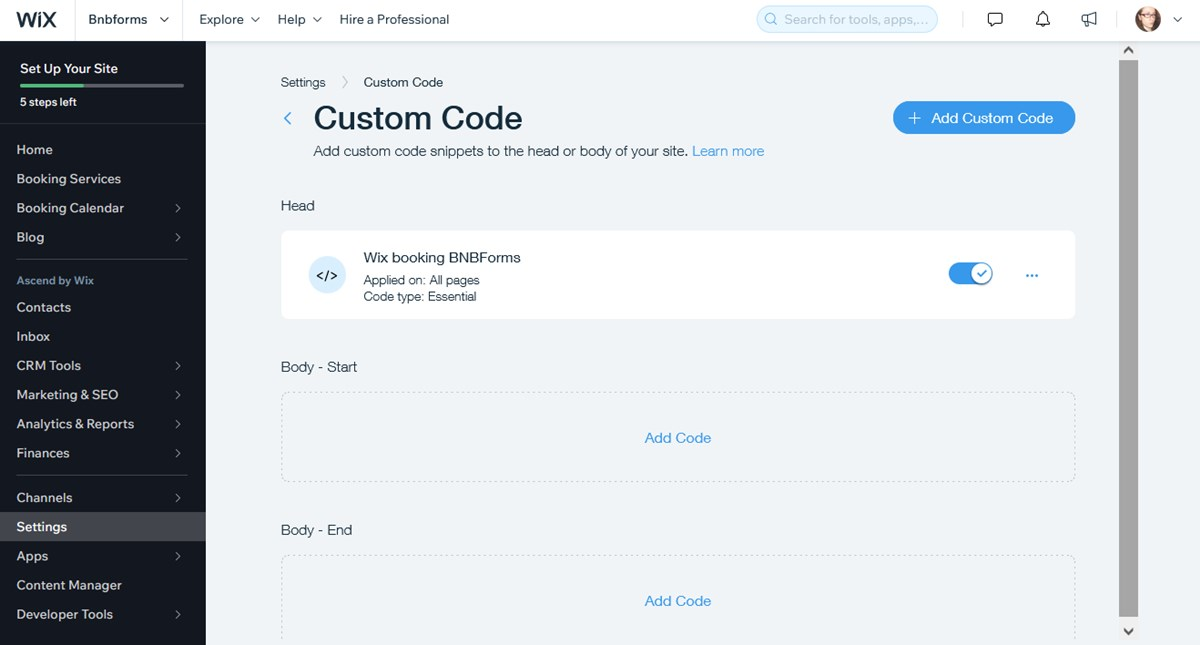
Step 6.2: Add the Custom Code
- Select Custom Code from the settings menu.
- Click on + Add Custom Code and paste the SalesGroup.ai code snippet that you copied earlier.
- In the Place Code In dropdown, choose Head so that the chatbot script runs across all pages of your site.
- Assign the code to All Pages (this ensures the chatbot appears on every page of your website).
- Click Apply to save the changes.
Step 6.3: Publish Your Website
Once the chatbot code is installed, click Publish in the Wix editor to make the changes live.
Step 6.3: Publish Your Website
Once the chatbot code is installed, click Publish in the Wix editor to make the changes live.
Step 7: Test the Chatbot
After publishing, visit your Wix website to ensure that the SalesGroup.ai chatbot is functioning correctly. You should see the chatbot interface on your site, ready to assist visitors.
Step 8: Monitor and Optimize
Once the chatbot is live on your site, you can monitor its performance from your SalesGroup.ai dashboard. From here, you can track metrics, fine-tune responses, and update training data as needed.
Related:
- How to Install SalesGroup.ai on Drupal
- How to install SalesGroup AI on WordPress
- How to install Jaci AI on Telegram
Need Help?
If you run into any issues during the installation process, our dedicated support team is here to help. You can reach out to us via email or chat, and we’ll guide you through the process to ensure a smooth integration.
Here are the benefits of Salesgroup AI’s chatbot:
- High Resolution Rate: Resolves 75% of customer questions with instant, human-like responses.
- Cost-Effective: 10x cheaper than human support, offering unlimited replies.
- Global Reach: Supports over 50 languages, providing worldwide assistance.
- Integration and Training: Trains using existing content for seamless adoption.
- Efficient Handoff: Smooth transition to live agents for complex queries.
This chatbot reduces costs and improves customer satisfaction with fast, scalable support.
