

Live chat on Salesgroup AI: A Quick Guide
Live chat has emerged as a powerful tool for instant customer engagement, allowing businesses to interact with leads and clients in real-time. With SalesGroup AI’s live chat, sales teams can handle inquiries, boost conversions, and maintain a personalized connection without slowing down the process.
In this guide, we’ll break down what live chat is, its benefits, how to enable and configure it, and explore the detailed features that make SalesGroup AI’s live chat a must-have for any sales team.
Table of Contents
What is Live Chat?
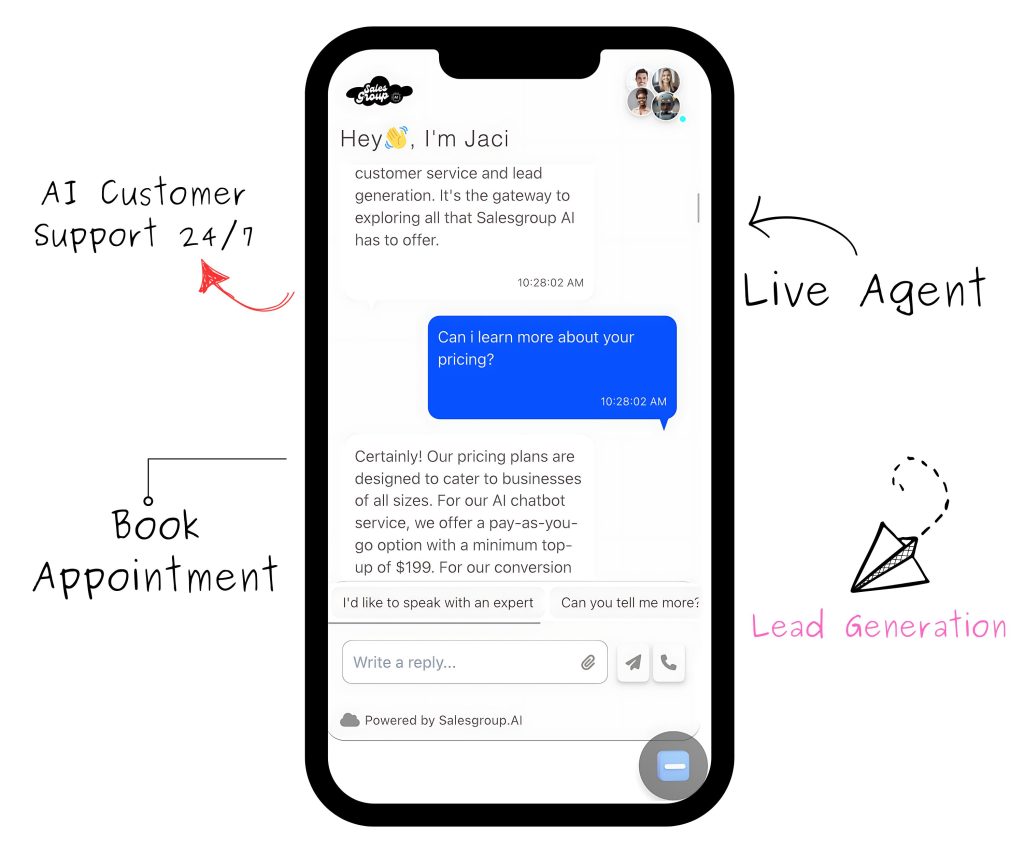
Live chat is a real-time messaging tool that allows businesses to communicate with visitors on their website. Unlike email or phone support, live chat provides instant communication, crucial when prospects have questions or concerns while browsing.
With live chat, businesses can provide immediate assistance, answer questions, resolve concerns, and guide visitors through the sales process in real-time.
The Benefits of Live Chat
Let’s dive into the key benefits of using live chat in your sales process:
1. Instant Support for Customers
Customers expect quick responses. Live chat ensures that your team addresses inquiries the moment they arise, preventing potential customers from leaving your site out of frustration.
2. Higher Sales Conversion
Live chat can significantly increase conversion rates by allowing your team to address any customer concerns in real-time. When customers receive immediate answers, they are more likely to complete purchases.
3. Personalized Customer Interaction
Live chat allows sales agents to personalize responses based on customer behavior. By knowing what products or pages a customer is browsing, agents can offer targeted recommendations or solutions.
4. Improved Customer Retention
Providing fast, efficient support keeps customers happy and loyal. When customers feel valued, they are more likely to return and do business with your brand again.
5. Increased Agent Productivity
Unlike phone calls, where agents can only handle one customer at a time, live chat allows them to engage multiple visitors simultaneously, increasing overall productivity.
6. Reduced Costs
Live chat enables fewer agents to manage more inquiries, cutting operational costs compared to traditional phone support while still delivering high-quality service.
7. Enhanced Customer Insights
Live chat systems often come with analytics that track customer behavior, allowing sales agents to adjust their approach based on real-time data. This makes interactions more effective and efficient.
Enabling and Configuring SalesGroup AI Live Chat: Step-by-Step Guide
Here’s how to set up SalesGroup AI’s live chat for your website, ensuring you’re ready to engage customers instantly.
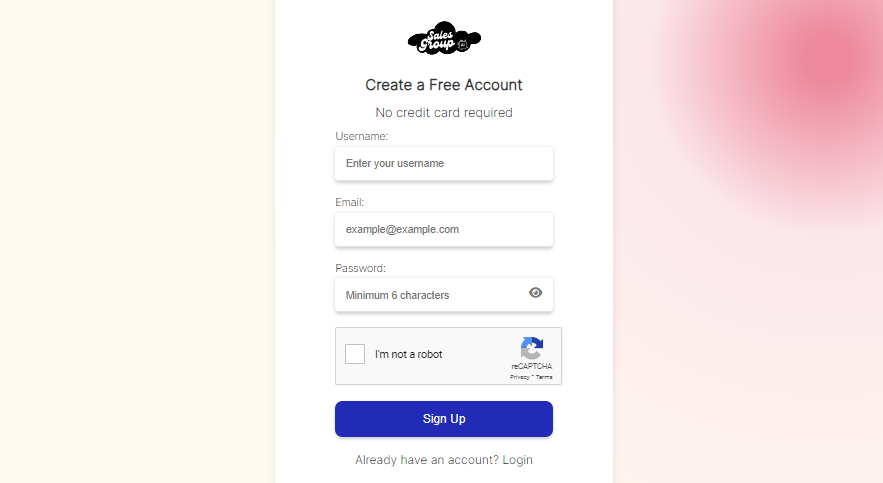
Step 1: Sign Up for SalesGroup AI
Head to the SalesGroup AI website and create your account. You’ll get access to your dashboard, where all the setup happens.
Step 2: Install the Live Chat Widget
After signing in, go to the settings section of the dashboard and find the widget code. Copy the code and insert it into your website’s HTML, typically in the footer or body section of your website. This process activates live chat on all pages of your site.

Step 3: Customize the Chatbox Appearance
In the customization section of SalesGroup AI’s dashboard, personalize your chatbox. Choose your brand colors, create a custom welcome message, and decide when the chatbox appears. You can even upload your team’s photos to make the interaction more personal.
Step 4: Set Automated Triggers
Automated triggers engage visitors who meet certain criteria. For example, you can set the chatbox to automatically pop up after a user spends more than 30 seconds on a specific product page. This feature helps capture leads that may need more information before making a purchase.
Step 5: Assign Roles and Permissions
In the “Team Settings” section, assign different roles to your team members. You can designate chat agents, managers, or admins, ensuring everyone has the right permissions to handle tasks. You also assign specific agents to certain chat sessions based on their expertise.
Step 6: Configure Push Notifications
Enable push notifications in the settings. This feature sends real-time alerts to team members when customers initiate chats, ensuring no customer is left waiting for a response.
Step 7: Test the Chat Functionality
Before launching the live chat on your site, run a few test chats. Make sure the chat widget is functional, responses are being sent correctly, and triggers are working as intended.
Detailed Features of SalesGroup AI Live Chat
SalesGroup AI’s live chat comes loaded with advanced features designed to boost your sales team’s productivity and effectiveness. Let’s break down each feature in more detail:
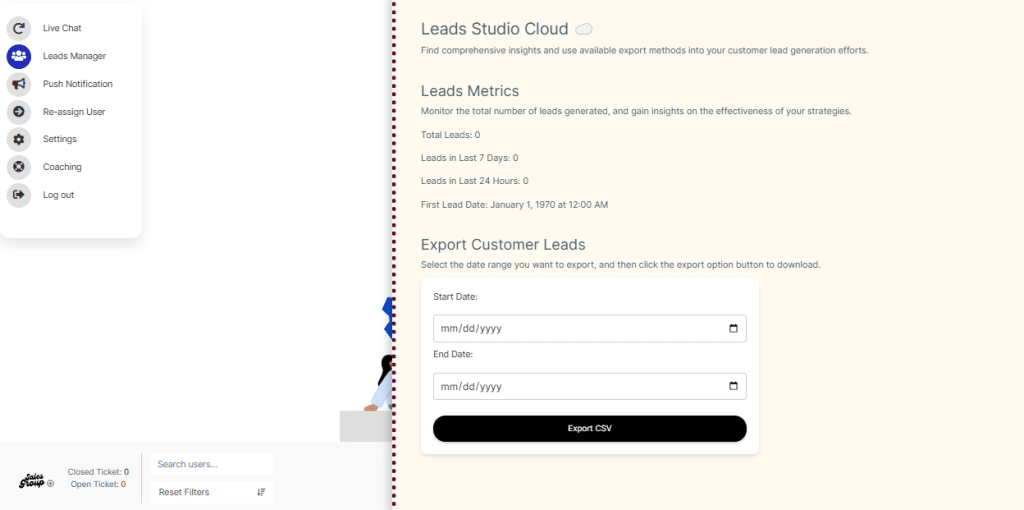
1. Leads Manager
Leads Manager allows your sales team to keep track of all customer interactions in one place. Every time a visitor engages with the chat, they are automatically added to your leads list.
Agents categorize leads based on conversation context, assigning them different tags such as “warm,” “hot,” or “follow-up required.” Leads are then stored in the dashboard for future engagement.
The Leads Manager simplifies follow-up by keeping all customer interactions organized. This feature ensures that no lead slips through the cracks and helps nurture relationships over time.
2. Push Notifications
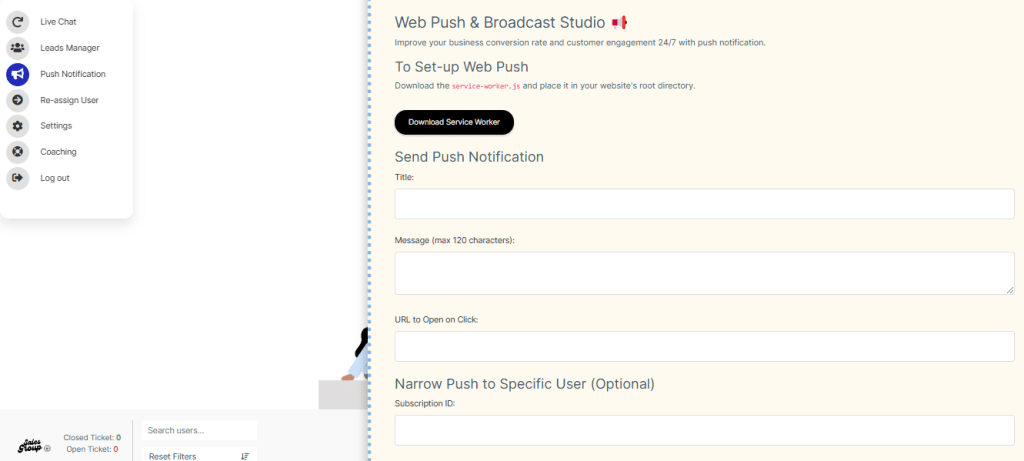
Push notifications notify agents when a chat session is initiated, even when they’re working on other tasks or away from their desk.
When a customer initiates a chat, SalesGroup AI sends a notification to the designated agent’s desktop or mobile device. This feature ensures that agents can jump into conversations without delay.
Push notifications ensure prompt responses, reducing the chances of losing leads due to slow reply times.
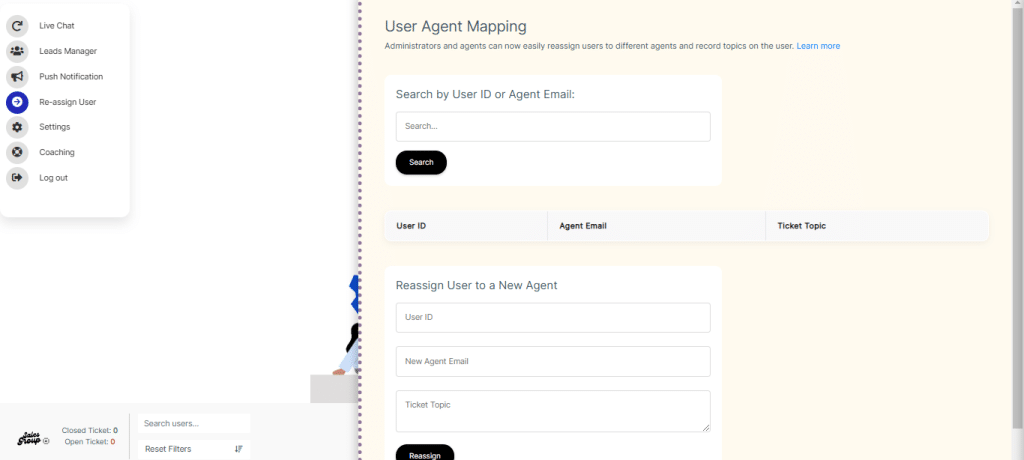
3. Reassign User
Reassign User allows agents to transfer active chat sessions to other team members when necessary.
If an agent encounters a question they can’t answer, they can quickly transfer the session to a more knowledgeable colleague. This feature also supports smooth shift transitions without losing communication continuity.
This feature improves customer satisfaction by ensuring that each query is addressed by the most qualified agent.
4. Custom Chat Scripts
Custom Chat Scripts help agents respond to frequently asked questions quickly and consistently.
Agents select pre-written responses from a library, covering common questions about products, services, or company policies. These scripts are tailored to the brand’s tone of voice.
This feature saves agents time while ensuring that all customers receive clear, concise, and professional answers.
5. Chat History and Analytics
This feature records all live chat conversations and provides detailed analytics on customer behavior and agent performance.
Every interaction gets logged in the system, allowing managers to review chat histories and performance metrics like average response times and conversion rates.
These insights allow teams to continually refine their sales strategies and improve the overall customer experience.
Updating Your Email in SalesGroup AI’s Live Chat
In the dashboard, click on “Profile Settings.” From there, select “Update Email.” Enter the new email address you want to use for live chat notifications and click “Save Changes.”
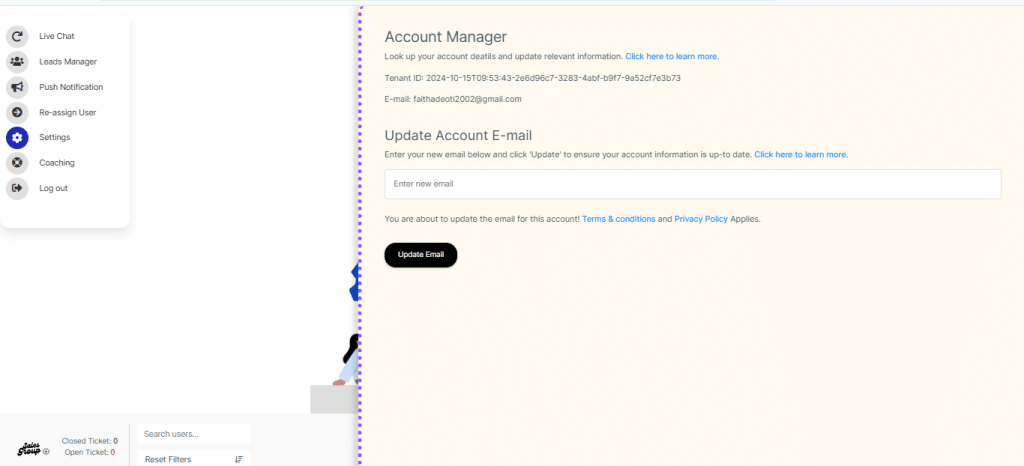
Keeping your contact information up-to-date ensures that all team notifications and customer interactions are correctly routed to your email.
Frequently Asked Questions (FAQs)
1. How long does it take to set up live chat?
Most users can set up live chat in under an hour. The process involves embedding the widget code into your website and customizing the chatbox’s appearance.
Can I customize the chatbox to match my brand?
Yes. SalesGroup AI allows full customization of the chatbox, including colors, logos, and welcome messages.
Can multiple agents handle live chat simultaneously?
Yes. SalesGroup AI supports multiple agents, allowing them to engage with different visitors simultaneously.
What happens if no agent is available?
You can set up automated messages that inform customers when agents are offline, and allow them to leave a message for follow-up.
How can I transfer a chat to another agent?
Simply use the “Reassign User” feature to transfer the session to another agent. You can also assign roles and expertise areas to ensure the right agent receives each chat.
