

Jaci – AI Chatbot
Welcome to a new era of customer support with Jaci; our innovative AI tool that provides personalized, human-like responses, just like a live agent. Enhance your customer interactions with Jaci, designed to handle inquiries quickly and efficiently.
Table of Contents
What is Jaci?

Jaci is an AI-powered customer support chatbot designed to handle customer inquiries and enhance business interactions. It uses advanced artificial intelligence to provide instant, human-like responses to common questions and support tasks. Jaci can be trained using a company’s existing data, like FAQs and knowledge bases, to ensure accurate and tailored responses.
Benefits of Jaci AI
- Resolve 75% of Customer Questions: Jaci AI helps in transforming customer interactions by providing quick, human-like responses. It can handle 75% of customer queries, leading to significant support automation and improved response times.
- Unlimited Replies per Customer: There are no restrictions on the number of responses the AI can provide, ensuring continuous and uninterrupted customer engagement.
- 10x Cheaper Than Human Support: Jaci AI offers a cost-effective solution, reducing support expenses by being 10 times cheaper than employing human customer support agents.
- Support in Over 50 Languages: The AI is capable of supporting customers globally by providing responses in more than 50 languages, making it ideal for businesses with an international customer base.
- Train with Existing Content: Businesses can train Jaci AI using their existing content, such as FAQs, knowledge bases, and documentation, allowing for a seamless and tailored customer experience.
- Smooth Handoff to Live Agents: For complex inquiries that the AI cannot handle, there is a smooth transition or handoff to live agents, ensuring that customers receive human support when necessary.
- AI Customer Support 24/7: Jaci provides round-the-clock customer support, ensuring that customer inquiries are addressed promptly at any time of day.
- Book Appointments & Lead Generation: The AI can assist customers with booking appointments and also generate leads by collecting relevant information during interactions, enhancing business opportunities.
Enabling and Configuring Jaci
Step 1: Sign Up or Log In to SalesGroup.ai
- Go to the SalesGroup.ai website and create a new account if you haven’t already.
- If you have an account, simply log in using your credentials.
Step 2: Access the Jaci Dashboard
- Once logged in, navigate to the Jaci AI Dashboard. This is where you’ll configure and manage your AI chatbot.
- The dashboard provides you with access to training modules, chatbot customization, and analytics.
Step 3: Train Jaci AI
Before integrating Jaci into your website, you need to train it with the relevant data to make it familiar with your business:
- Navigate to the Training Section: On the left-hand side menu, select AI Chatbot Training.
- Add Business Information: Provide key details about your business, including common FAQs, services, and contact information. This helps Jaci provide accurate and relevant responses.
- Use the Sitemap Crawling Option (Optional): If you want Jaci to be familiar with your entire website’s structure, you can add your website’s sitemap URL. This allows the AI to crawl your content for better context.
- Example: Add something like
https://yourdomain.com/sitemap.xml.
- Example: Add something like
Step 4: Customize Jaci’s Settings
Once Jaci has been trained, customize its behavior and appearance to better match your business:
- Chatbot Name: Assign a unique name for Jaci to personalize the interaction. You can name it something fun or relevant to your business.
- Language and Tone: Set the tone of communication and the primary language for your audience.
- FAQs and Keywords: Manually add common customer questions and key responses Jaci should know by heart.
- Contact Information: Include links to customer service numbers, social media, or appointment scheduling pages so customers can easily reach out if they need further assistance.
Step 5: Generate the Installation Code
After Jaci is fully trained and customized, you’ll need to generate the code to embed it on your website:
- Go to the Installation Section of the dashboard.
- Click on Generate Code to create a script that you will install on your website.
- Copy the Code snippet for use in the next steps.
Step 6: Install Jaci on Your Website
To install Jaci on your website, follow these steps depending on your platform:
For Standard HTML Websites:
- Access your website’s HTML editor.
- Paste the chatbot code in the
<head>section of your website’s HTML. - Save and publish the changes to your site.
For CMS Platforms (WordPress, Shopify, etc.):
- Install a plugin for custom HTML or JS code blocks.
- Paste the Jaci code in the header section or wherever you want the chatbot to appear.
- Save and publish the changes.
Step 7: Test and Activate Jaci AI
Once installed, visit your website to confirm that the Jaci AI chatbot is functioning properly:
- Test a few common queries and see how Jaci responds.
- Ensure that it displays correctly on both desktop and mobile versions of your site.
Step 8: Monitor and Adjust Jaci
- Review Analytics: In the Jaci AI Dashboard, monitor analytics to see how the chatbot performs. You can check interactions, missed queries, and how it assists users.
- Ongoing Training: Periodically update and retrain Jaci with new data, updated FAQs, and any changes in your business offerings.
Related: How to Install SalesGroup.ai on Wix
Analytics
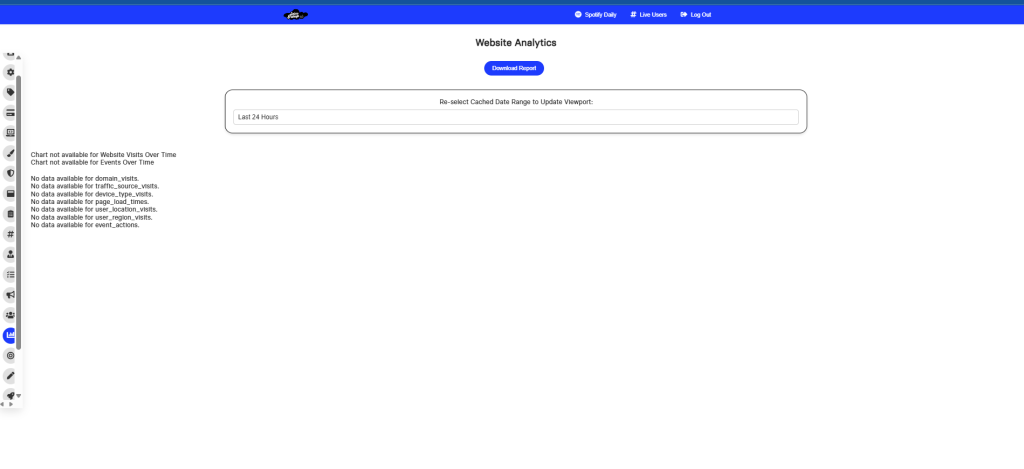
The analytics page of Jaci AI shown in the screenshot provides insights into website performance and user behavior, although it currently displays no data. Typically, this page would track and present metrics that are crucial for understanding user interactions and chatbot effectiveness. Here’s what each section would ideally show when data is available:
- Domain Visits: The number of visitors who accessed your domain.
- Traffic Source Visits: Where your visitors are coming from (organic search, direct, social media, etc.).
- Device Type Visits: How many visitors accessed your site via desktop, mobile, or tablet.
- Page Load Times: The average time it takes for pages on your website to load, impacting user experience.
- User Location Visits: The geographical regions of your visitors.
- User Region Visits: More specific breakdowns of the user’s locations within larger areas (e.g., cities or states).
- Event Actions: Actions users take while interacting with Jaci or your website (e.g., button clicks, form submissions).
In its fully functional state, this analytics dashboard would allow you to download reports, review the performance of the Jaci AI chatbot, and optimize how it interacts with visitors.
Automations
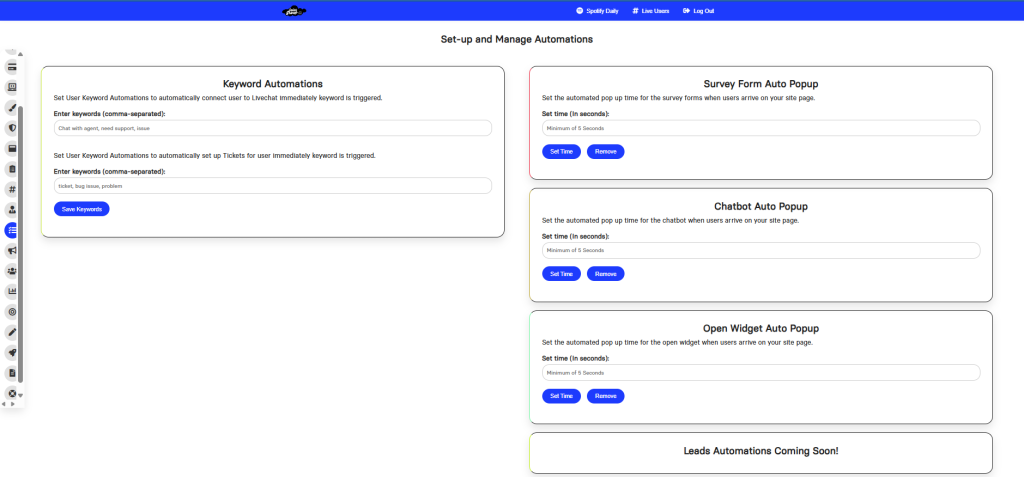
The automation allows the account owner to set up keywords for both live chat and ticket creation. When a user enters one of the specified keywords in the live chat or ticket system, it automatically triggers a response from live agents and also sets up a support ticket. This streamlines the support process, ensuring that users receive immediate attention from agents and have a ticket generated for follow-up.
Social AI
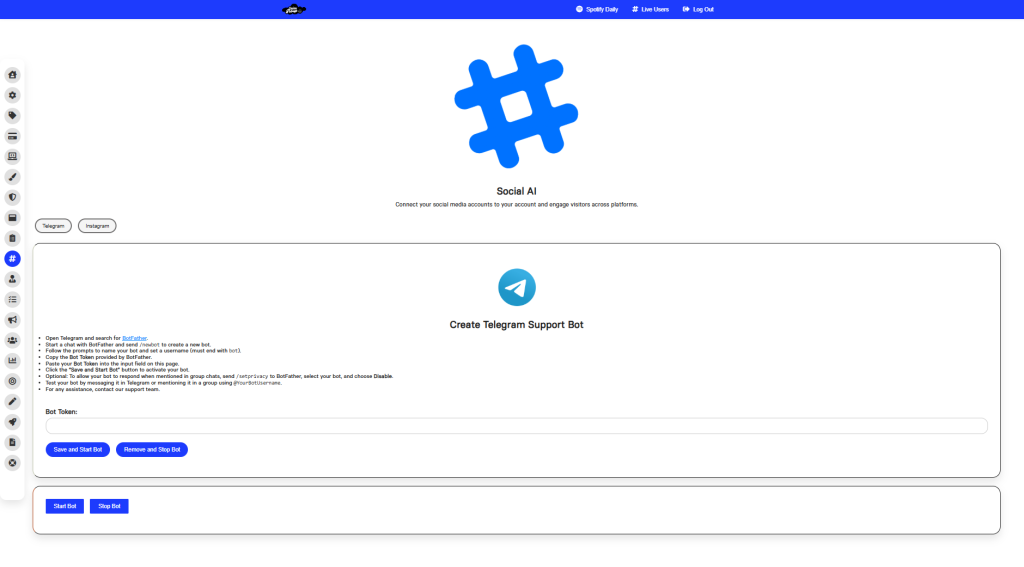
This tool allow users to connect their social media accounts (in this case, Instagram) to Jaci AI to boost sales and engage visitors across platforms. The current status shows the option to “Connect Instagram”, but the connection status is still being checked, indicating that the integration setup process is in progress or not yet available.
Related: Getting Started with SalesGroup.ai: A Step-by-Step Guide
Account insight
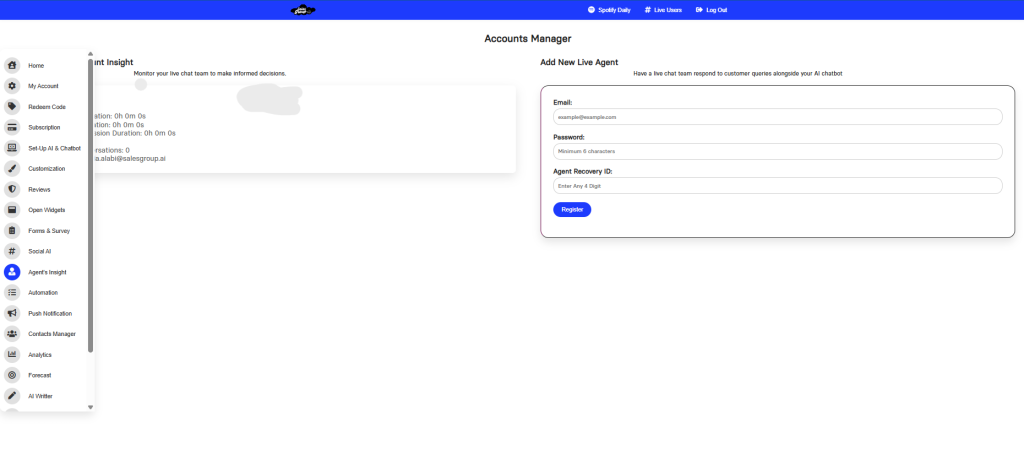
The Accounts Insight feature in Jaci AI allows users to add and monitor live agents who can assist with customer queries alongside the AI chatbot. This feature ensures a seamless experience in managing human support agents while keeping track of their activities and performance.
Customization
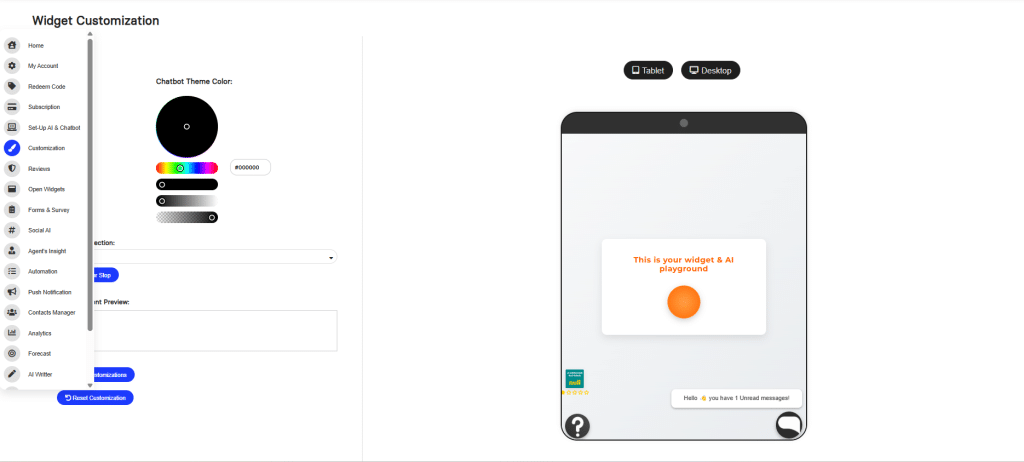
This customization features allows for deep customization of the chatbot’s visual elements, including uploading logos and images, adjusting colors and gradients, and integrating customer reviews. This allows businesses to align the chatbot with their brand identity and website design.
Customization Options:
The field contains an iframe code snippet that could be copied to add these reviews to the chatbot’s interface.
- Chatbot Image Upload: There are fields for uploading images for the chatbot. The fields labeled “Chatbot Image 1” through “Chatbot Image 4” seem to be for setting up different images that the chatbot might use on the interface.
- Your Brand Logo: There is an option to upload a custom logo for your brand, allowing the chatbot to incorporate branding elements into its interface.
- Chatbot Theme Color: A color selector lets you choose the primary theme color for the chatbot. You can either manually select a color or enter a hex code for a specific shade. There is a circular color wheel and sliders to adjust hue, saturation, and brightness.
- Gradient Customization: The interface allows you to customize the gradient direction of the chatbot’s design (e.g., “Right”). There is an option to add multiple “Color Stops,” which would allow you to fine-tune the gradient effect. A “Color Gradient Preview” section shows how the gradient would appear.
- Buttons for Actions: There is a “Save Customization” button to save your design changes.
There’s also a “Clear All Customization” button to reset the chatbot customization to default settings. - Add Reviews as Inner HTML:A section at the bottom of the page appears to allow you to add reviews by copying the inner HTML. This could be used to display customer testimonials or ratings inside the chatbot interface.
Settings
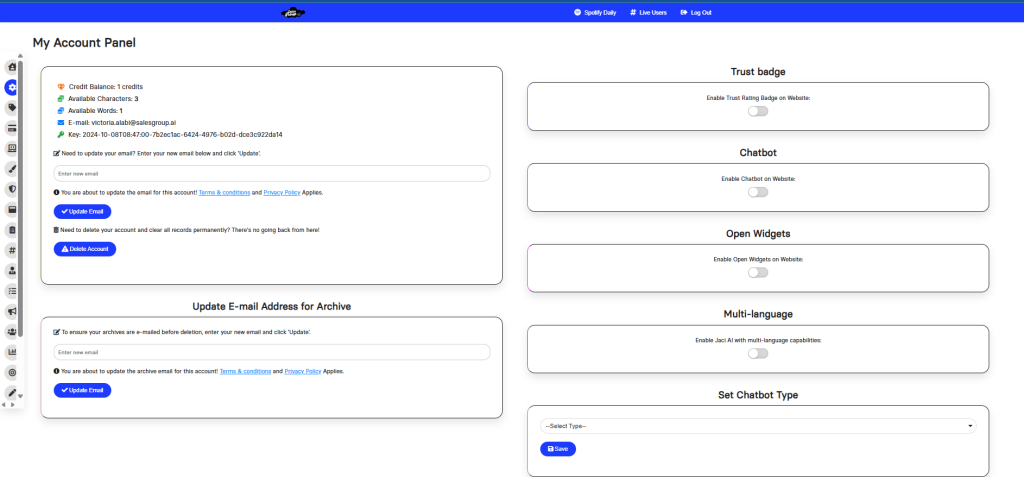
The Settings Page allows you to manage your account preferences, toggle key features, and update important information like your email. Here’s how to make the most of the available settings.
1. Account Manager
- Credit Balance: Shows the number of credits available in your account. (e.g., 44 credits)
- Account ID & Email: Displays your unique account ID and the email associated with your account.
2. Feature Toggle
You can easily enable or disable the following features by toggling the switches:
- Trust Badge: Enable this to display a trust rating badge on your website. This can help boost credibility and visitor trust.
- Chatbot: Activate or deactivate the chatbot feature for your website, allowing you to manage customer interactions automatically.
- Feedback: Allow or disallow feedback forms on your website to collect insights from visitors and customers.
- Multi-language Support: Toggle this to enable multi-language capabilities, making your site accessible to a global audience.
3. Update Account Email
Need to change the email linked to your account? Here’s how:
- Enter your new email address in the field provided.
- Click Update Email to save your changes.
Note: This change will be governed by the platform’s [Terms & Conditions] and [Privacy Policy].
4. Delete Account and Affiliates
If you wish to permanently delete your account and remove all associated data:
- Click on the Delete Account button.
- Confirm that you understand this is an irreversible action.
5. Update Email Address for Archive
To update the email address where your archived data will be sent before your account is deleted:
- Enter the new email address in the input field.
- Click Update Email to confirm the change.
Navigation Menu
On the left side of the screen, you will find a menu with the following options to explore more features:
- Reputation Manager: Track and manage your brand’s online reputation.
- Push Notifications: Set up notifications to keep your users engaged.
- SEO Rank Ready: Tools to help you improve your website’s SEO performance.
- Forecast: Utilize predictive tools to make informed business decisions.
- Convenient Services: Access additional services like free audits, conversion metrics, and more.
FAQS for Jaci
How much does Jaci cost?
Pricing for Jaci depends on the plan you choose. There are different pricing tiers based on the level of customization, volume of interactions, and additional features required.
Can Jaci be customized to fit my brand?
Yes, Jaci can be customized to match your brand’s voice and tone. You can tailor responses, automate specific workflows, and modify the chatbot’s appearance to fit seamlessly into your website or platform.
How can I track Jaci’s performance?
Jaci offers analytics and reporting tools to monitor its performance. These include metrics such as the number of conversations, resolution times, customer satisfaction, and more. You can access these analytics via the admin dashboard.
What happens if Jaci cannot answer a customer query?
If Jaci encounters a question it cannot handle, it will transfer the query to a live human agent for further assistance. You can also configure fallback responses and escalation processes to ensure smooth handling of such queries.
Can Jaci be integrated with my CRM or helpdesk system?
Yes, Jaci can be integrated with popular CRM and helpdesk systems to streamline communication and improve efficiency. This integration allows for better data flow and context between customer interactions and your support system.
